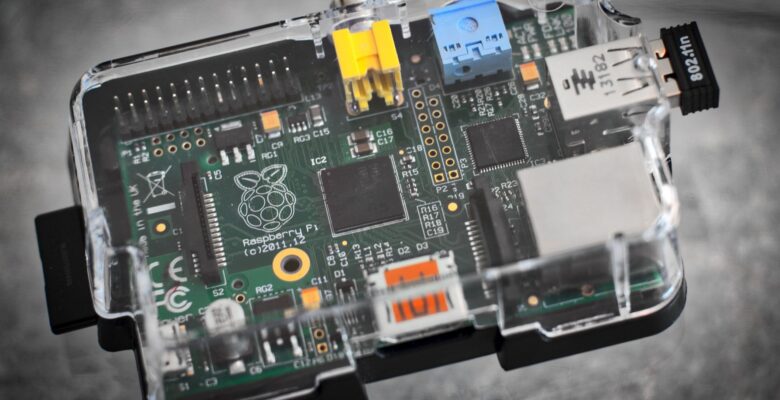
Your old Raspberry Pi’s first job: silence the internet
If you’ve got a Raspberry Pi sitting in a drawer, Pi-hole is the single best first project you can give it. It’s practical, it works immediately, and once it’s running you’ll wonder how you ever lived without it.
Pi-hole acts as a DNS sinkhole. Instead of your router sending DNS queries to your ISP or Google’s servers, you point everything at your Pi instead. Pi-hole intercepts requests for known ad-serving domains and simply drops them – returning nothing. The browser gets no response for the ad, so no ad loads. No extension, no per-device setup, no ongoing fiddling. That’s Pi-hole network ad blocking for every device on your network – phones, smart TVs, games consoles, laptops – automatically.
What you’ll need
- Any Raspberry Pi (even a Pi Zero W will do the job)
- A microSD card (8GB is plenty)
- A stable network connection – wired is better, but Wi-Fi works
Pi-hole is remarkably light. It runs happily on the oldest hardware in your collection and sips a negligible amount of power – perfect for something that needs to be on 24/7.
Installation
Start with a fresh Raspberry Pi OS Lite install (no desktop needed – Pi-hole runs headless just fine). Once you’re logged in via SSH, the install is a single command:
curl -sSL https://install.pi-hole.net | bashThe installer walks you through everything interactively: choosing your upstream DNS provider (I’d recommend Cloudflare’s 1.1.1.1 or Quad9), selecting your network interface, and setting a static IP. That last bit is important – your Pi needs a fixed address on your network, otherwise your router config breaks every time the Pi reboots.
Pointing your router at Pi-hole
Once Pi-hole is installed, head into your router’s admin panel and change the DNS server it hands out via DHCP to your Pi’s IP address. The exact location varies by router, but look for DHCP settings or LAN/DNS settings. Save and reboot your router, and within a few minutes every device on your network will be using Pi-hole without any per-device configuration.
The admin dashboard
Pi-hole comes with a clean web dashboard at http://<your-pi-ip>/admin. It shows you in real time how many queries are being blocked, which domains are being hit most, and which devices on your network are the chattiest. It’s genuinely eye-opening – you’ll quickly discover just how much background noise your devices generate.
Beyond basic ad blocking
The default blocklist is good, but Pi-hole supports multiple lists. Community-maintained lists like those from Firebog cover tracking domains, malware domains, and telemetry endpoints in addition to ads. You can add as many as you like from the admin panel under Group Management > Adlists.
You can also use Pi-hole’s whitelist and blacklist manually – useful if a specific site breaks because a legitimate domain ended up on a blocklist, or if you want to block something specific for all devices on your network.
A word on HTTPS and encrypted DNS
Pi-hole handles standard DNS by default. If you want to go further and prevent DNS queries from leaking outside your network entirely, look into setting up DNS-over-HTTPS (DoH) using cloudflared as an upstream resolver for Pi-hole. It’s a straightforward extra step that’s worth doing if privacy matters to you.
What to expect
On a typical home network, Pi-hole blocks somewhere between 10–30% of all DNS queries. That’s not just ads – it includes trackers, telemetry from apps and smart devices, and various background phone-home requests from hardware you’d rather didn’t call home quite so often.
Once it’s running, you barely notice it’s there. Which is exactly the point.
This is part one of our “Things to do with your old Raspberry Pi” series. Next week: running your own WireGuard VPN server.