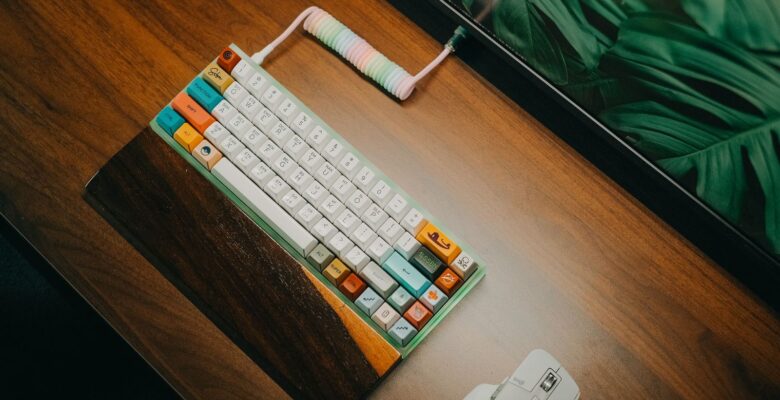
The goal: use your phone from a real keyboard
Typing on a phone screen is fine for quick fixes and miserable for anything longer. Setting up SSH in Termux lets you sit at your laptop and work inside the phone’s environment, and it turns the phone into a capable SSH client for your own servers too.
This is part three of my Termux series. It pairs well with Claude Code in Termux and Running OpenCode in Termux on Android, both of which are far nicer to drive from a full keyboard.
Step 1: install OpenSSH
Install Termux from F-Droid or the project’s GitHub releases. The Google Play listing is still labelled an experimental branch with missing functionality, and Termux plus its plugin apps must all come from the same source because they share a signing key. Mixing sources gives you INSTALL_FAILED_SHARED_USER_INCOMPATIBLE errors.
pkg update && pkg upgrade
pkg install openssh
This one package gives you both the server (sshd) and the client tools (ssh, scp, ssh-keygen).
Step 2: start sshd
Termux runs as an ordinary Android app, so it cannot bind to port 22. Its sshd listens on port 8022 by default. Set a password for the first login, check your username, then start the server:
passwd
whoami
sshd
whoami prints something like u0_a123. Termux has a single user, so in practice the username you pass from the client does not matter much, but using the real one avoids confusion. Find the phone’s IP address in Android’s Wi-Fi settings, or with ifconfig if you have it installed.
Step 3: connect from your laptop
ssh -p 8022 u0_a123@192.168.1.50Replace the user and IP with your own. If it connects and asks for the password you set, the server is working.
Step 4: switch to key-based login
Passwords are fine for a first test, but keys are both safer and quicker. On the laptop, generate a key if you do not already have one, then copy it across:
ssh-keygen -t ed25519
ssh-copy-id -p 8022 u0_a123@192.168.1.50
That appends your public key to ~/.ssh/authorized_keys in Termux. I covered the basics of SSH with keys for authentication in an older post, and the same principles apply here. Once key login works, disable passwords by editing $PREFIX/etc/ssh/sshd_config:
PasswordAuthentication noRestart the server to apply it:
pkill sshd
sshd
A laptop shortcut
Add an entry to ~/.ssh/config on the laptop so you can just type ssh phone:
Host phone
    HostName 192.168.1.50
    Port 8022
    User u0_a123
SSH out from Termux to your servers
The client side works exactly as on any Linux box. Generate a key on the phone and add the public half to your servers:
ssh-keygen -t ed25519
cat ~/.ssh/id_ed25519.pub
ssh user@your-server.example.com
Give the phone its own key rather than copying your laptop’s private key onto it. If the phone is lost, you can revoke that one key without touching anything else.
Port forwarding
SSH tunnels are a tidy way to reach services on the phone without exposing them. For example, to reach a llama.cpp server running in Termux on port 8080 from your laptop:
ssh -p 8022 -L 8080:127.0.0.1:8080 phoneThen open http://127.0.0.1:8080 on the laptop.
Troubleshooting and limitations
- Connection refused: sshd is not running, or you forgot
-p 8022. Runsshdagain after reopening Termux. - Connection drops when the screen locks: Android may suspend or kill Termux. Acquire a wake lock from the Termux notification, or run
termux-wake-lock. - Different networks: this only works when both devices can reach each other, typically on the same Wi-Fi. For remote access use a VPN such as WireGuard or Tailscale rather than forwarding ports on your router.
- Keys rejected: check permissions with
chmod 700 ~/.sshandchmod 600 ~/.ssh/authorized_keys.
If you want sshd to start automatically, Termux:Boot can run it at boot; see Termux:API automation for how boot scripts work.
Wrap-up
SSH in Termux takes about five minutes to set up and changes how usable the phone is as a dev machine. Run sshd, connect on port 8022, switch to keys, and you have a pocket Linux box you can drive from any keyboard. Pair it with Zsh and Oh My Zsh in Termux for a shell that feels like home.
Leave a Reply
You must be logged in to post a comment.