
Adding virtual desktops in mac osx
This is a short blog post about adding virtual desktops in mac osx – virtual desktops are a cool feature that let you have lots of ‘fake’ monitors that you can use to organise your programs, and you can access them with a mouse or keyboard shortcut. Once you get used to them, there is no going back – they are a really awesome feature that helps speed up your workflow.
I currently have 6 desktops – one for email and communications, one for browsers, one for code, one for databases, one for music and a spare one at the end for misc things, like photoshop, or terminals when I’m working on servers – you can pin applications to certain desktops once you have them setup (to do this you right click on the app icon in the dock then go to options and pick what you want from the list that shows!)
- Open mission control (click the mission control icon or do a “3 fingers swipe up” gesture on the multi-touch pad)
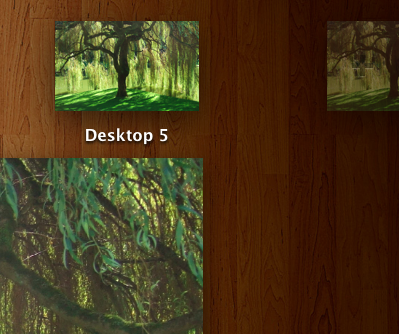
- Move the mouse to the top right corner of the screen, you will see half of a desktop with a + in it.
- Click that half-desktop with the plus in it as many times as desktops you need.
FAQ:
To see how to delete your spaces, check this post
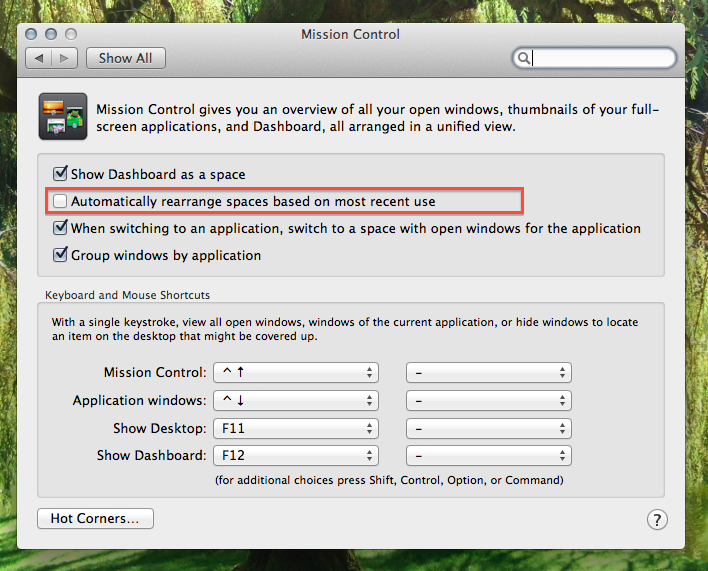
You can stop the virtual desktops re-ordering themselves by going to System preferences > mission control > un-tick ‘automatically rearrange spaces based on most recent use’
Yes, you can arrange virtual desktops any way you like – :) see this post
You can’t give virtual desktops their own name as of now, but this could be a feature in a future update
23 responses to “Adding virtual desktops in mac mission control”
how do I delete one?
if you go on the desktop miniature in mission control (upper border), a widget-like X appears on the left upper corner of the desktop miniature. click on it to delete
I was looking for that in Goole… and here you go – you helped me out :-) Thanks! Keep on your great posts
Thank you so much, It was very helpful
can you name your desktops?
not found a way yet, but there will be a defaults command for it I hope :)
is there a way to lock in the desktops, so they don’t switch around when you tab around?
yeah,
system prefs > mission control > untick ‘automatically rearrange spaces based on most recent use’
This was very helpful. Â Thanks.
Interesting post I really didn’t know that the desktop can also be customized
sooo handy!
In my install of Lion (in a 21.5″ iMac) I had to move the cursor to the top left corner to see the half screen with ‘+’ in it. YMMV.
Is there a way to keyboard shortcut switching ‘spaces’ or ‘virtual desktops’?
 control + left and right arrows
Thanks, very helpful, I couldn’t find it myself, only my Lion also shows the icon at the upper left corner. Perhaps ’cause of the dock position (to the right)?
This works fine. There is one problem for me. Say I have two desktops 1 and 2, now I want to open a document, let’s say a pdf-document. How do I force this to be placed on desktop 1?
great tutorial! thanks. i would also add a tip: that you can customize your desktop background (image) PER virtual desktop. for instance, i have an image of a wooden apple as the background for my “Desktop 1” and an image of my calendar as the background for my “Desktop 2”.
I am trying to open the same application on two desktops – but it keeps going to the one that is open – any idea how to make them function independantly?
Thanks, everyone, for the input. It was quite helpful.
So Helpful, thank you
Is there a way to have a different set of icons/folders on each desktop or are you stuck with the same icons on every desktop? For example I Want one set up for Indesign use and i have some alias for locations on various servers that I would want on that desktop. Then I have a Photoshop desktop that would have another set of alias set up for it. As it works now, if i put an icon on one desktop it shows up on all desktops. Am I missing something or is that working as intended?
Hi.
there isnt a way to have different icons on the desktop in each space, and there isnt a way to have different docks in each desktop either :(
there are third party apps that you can get that might be able to do this though:
https://discussions.apple.com/thread/4459903?start=0&tstart=0
First Macbook pro 15 loving it!!! My question since I have multi desktop I notice my background for desktop 1 is not on the other 4 desktop i created. How can I have all the desktop with the same background when I have it switching every 10 mins?